Purchase & Installation Guide
Follow this guide to set up your Web3Cart account, complete your payment, and install the software based on your selected plan.
1. Account Creation & Security
- Navigate to the pricing page at https://web3cart.site/#pricing.
- Select your preferred package and click "Get Started".
- Fill out the registration form and click "Create Account & Pay".
⚠️ Important: Recovery Key
Upon submitting the form, the system will generate a unique Recovery Key.
XPAYR-XXXX-XXXX-XXXX
We cannot recover this key for you. Please store it safely! You will need this to reset your password if you forget it. Once saved, click "I have saved my key, Continue".
2. Payment & Activation
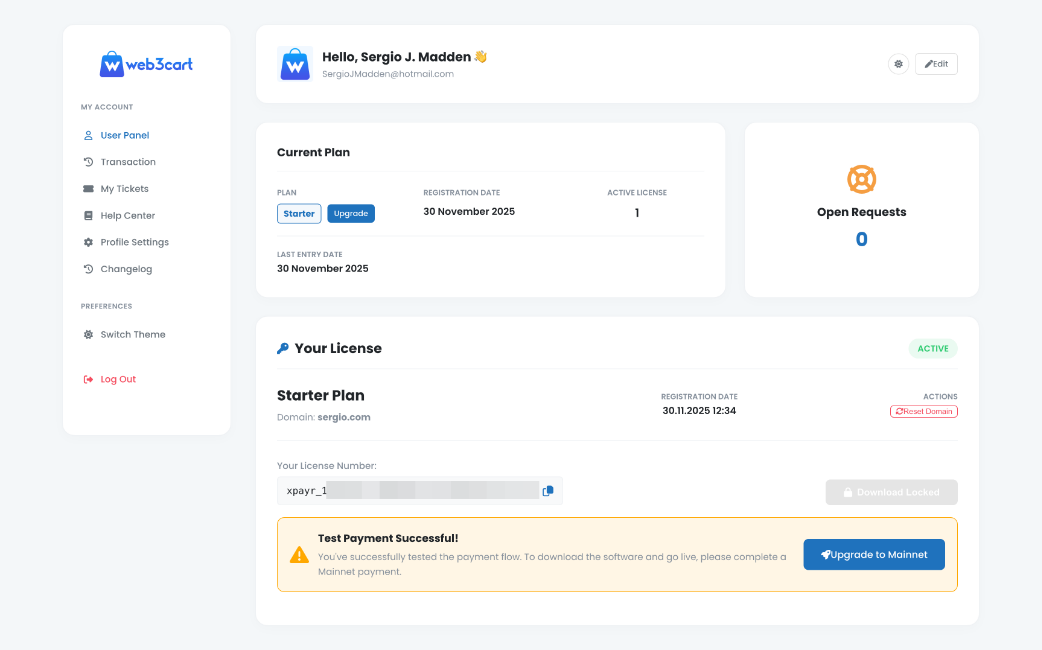
After logging into the panel, you will be prompted to complete your purchase:
- Connect Wallet: Select your preferred network (BSC, Ethereum, etc.).
- Network Selection: While Testnets (e.g., BSC Testnet, Sepolia) are available for testing connectivity, payment must be completed on a Mainnet to generate a valid license.
Once the transaction is confirmed on the blockchain, your License Key and the Download button will become active immediately.
3. Hosting & Installation Options
The installation procedure varies depending on your subscription plan:
- Starter Plan: Self-hosted. You are responsible for hosting and installing the software on your own server.
- Growth & Scale Plans: Includes 1 Year of Free Hosting. We handle the installation and deliver a turnkey solution.
- Enterprise Plan: Includes 3 Years of Free Hosting. We handle the installation and deliver a turnkey solution.
4. Self-Hosting Installation Guide (Starter Plan)
If you are using the Starter Plan or prefer to use your own server:
Requirements: Any server environment compatible with standard control panels (cPanel, FastPanel, etc.).
Steps:
- Download the software
.zipfile from your dashboard. - Upload and extract the file to your server's public directory. No manual database configuration is required.
- Open your browser and navigate to:
yoursite.com/install - Follow the Setup Wizard to complete the installation using your License Key.