Telegram Notifications Setup Guide
Telegram Notifications Setup Guide
Web3Cart includes a powerful real-time notification system that sends instant alerts to your Telegram whenever important events occur on your marketplace. Stay informed about new orders, user registrations, and payment confirmations — all delivered directly to your phone or desktop.
Why Telegram?
Telegram is fast, secure, and available on all devices. Unlike email notifications that can get lost in spam folders, Telegram messages are delivered instantly with push notifications. You'll never miss an important sale again.
Step-by-Step Setup Guide
Step 1: Create a Telegram Bot
- Open Telegram and search for @BotFather
- Start a conversation and send the command:
/newbot - Choose a name for your bot (e.g., "My Store Notifications")
- Choose a username for your bot (must end with "bot", e.g., "mystorenotify_bot")
- BotFather will give you an API Token — save this securely!
Important: Never share your bot token publicly. Treat it like a password.
Step 2: Create a Private Channel & Get Channel ID
- Create a new private channel in Telegram for Admin notifications
- Add your bot as an Administrator to that channel
- Send a test message to the channel
- Forward that message to @userinfobot
- The bot will reply with the Channel ID (usually starts with -100)
Step 3: Configure in Admin Panel
Web3Cart provides an easy-to-use interface in the Admin Panel to configure your Telegram notifications. No need to edit any files — everything is managed through the dashboard.
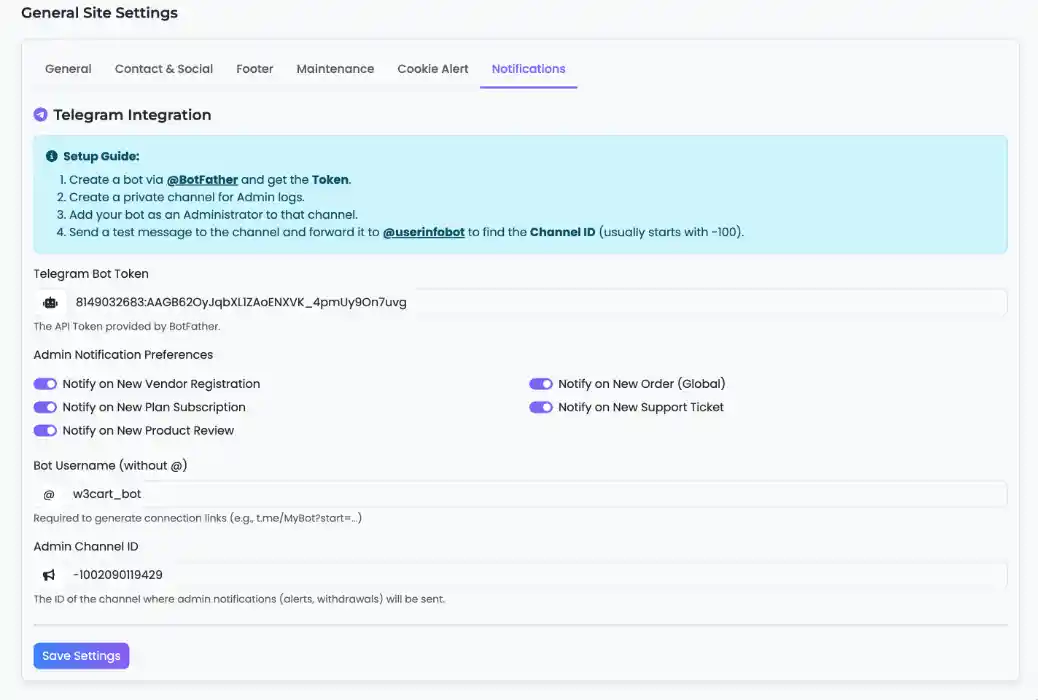
Navigate to Admin Panel → General Site Settings → Notifications tab and enter:
- Telegram Bot Token: The API token you received from @BotFather
- Bot Username: Your bot's username without the @ symbol
- Admin Channel ID: The channel ID where admin notifications will be sent
You can also customize which notifications you want to receive:
- New Vendor Registration
- New Plan Subscription
- New Product Review
- New Order (Global)
- New Support Ticket
Step 4: Test Your Configuration
Click Save Settings and make a test action (e.g., create a test ticket or register a vendor). If configured correctly, you'll receive an instant Telegram message in your channel!
Notification Types
Web3Cart sends notifications for the following events:
| Event | Description | Information Included |
|---|---|---|
| New Order | When a customer places an order | Order ID, Product Name, Amount |
| Payment Confirmed | When blockchain confirms payment | Customer Name, Plan, Amount, TX Hash, Network |
| New User | When someone registers an account | User Name, Email |
| Support Ticket | When a customer opens a ticket | Ticket Subject, Priority |
| Vendor Activity | When vendors add products or make sales | Vendor Name, Action Type |
Advanced: Group Notifications
You can also receive notifications in a Telegram group instead of a channel:
- Create a new Telegram group
- Add your bot to the group as a member
- Make the bot an administrator (required to send messages)
- Get the group Chat ID using @userinfobot (group IDs are negative numbers)
- Enter the group ID in the Admin Channel ID field
Pro Tip: Team Notifications
Using a group allows your entire team to see notifications in real-time. Add your support staff, fulfillment team, and management to stay synchronized.
Troubleshooting
Not receiving notifications?
- Check your bot token: Make sure there are no extra spaces or characters
- Verify Channel ID: Ensure it starts with -100 for channels
- Bot permissions: The bot must be an administrator in the channel/group
- Check server logs: Look for any Telegram API errors in your error logs
Messages delayed?
- Telegram API has a rate limit of 30 messages per second
- If you have high volume, messages may queue up briefly
- Check your server's internet connection
Ready to Get Started?
Set up Telegram notifications in under 5 minutes and never miss a sale again!
Questions? Contact our support team for assistance.